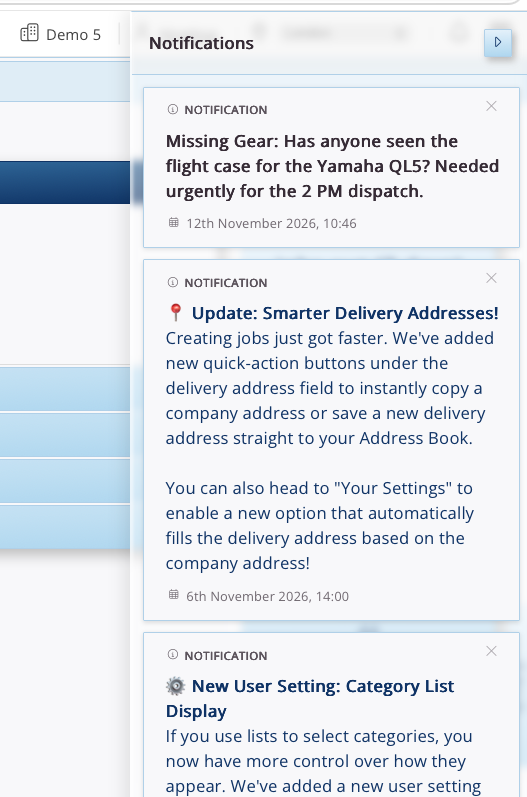




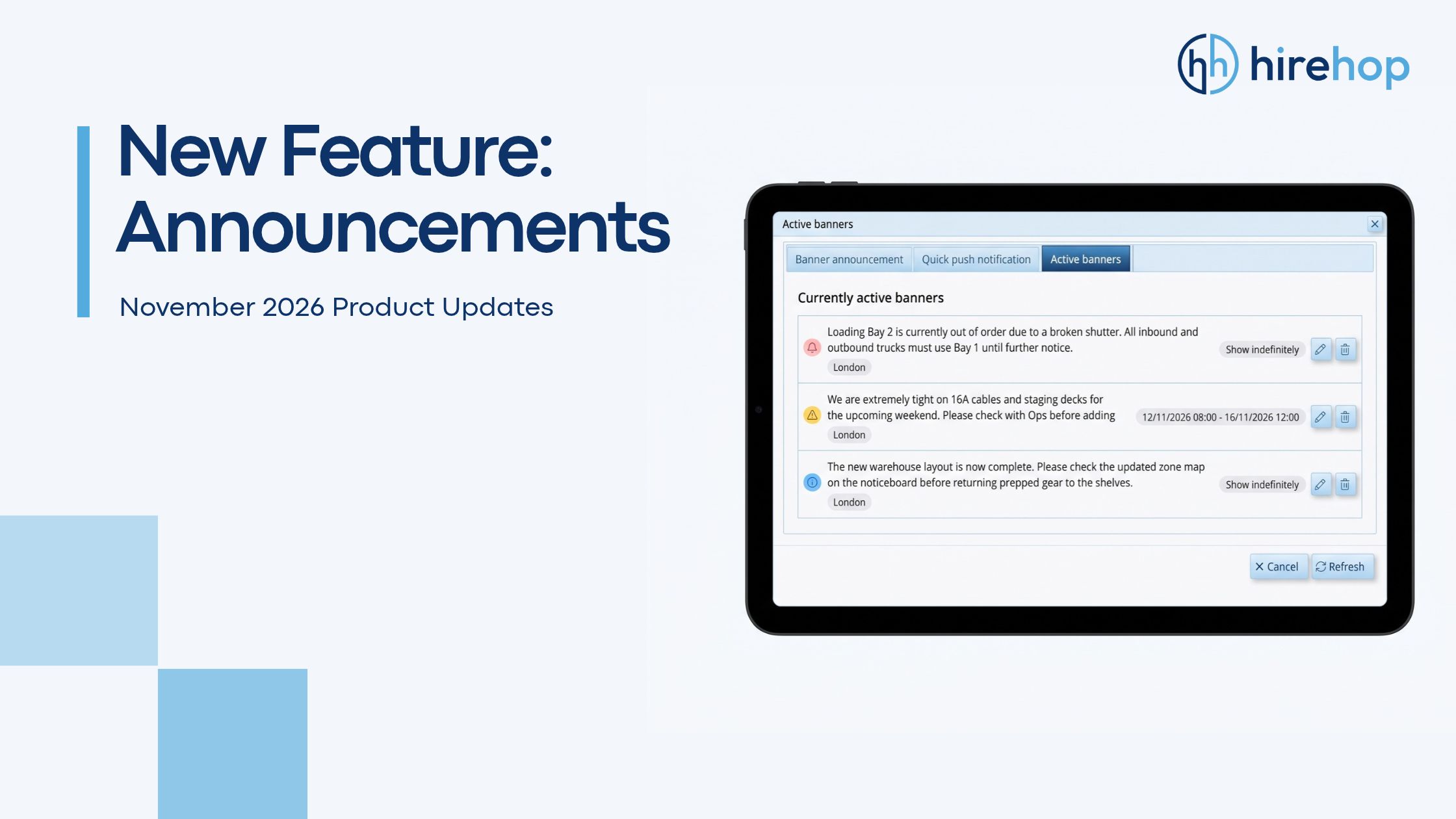
Keeping your hire desk, warehouse crew and operations team on the same page shouldn’t mean chasing messages across external chat apps, emails and noticeboards. When critical updates get buried — like an out-of-action loading bay, tight stock on high-demand gear or a missing flight case before dispatch — mistakes happen fast.
We’ve introduced Announcements, a built-in internal communications tool that lets administrators broadcast depot-specific alerts and instant notifications directly inside HireHop, right where your team already works.
How to Access Announcements
When logged in with Admin mode enabled, you’ll see a new megaphone icon in the top-right navigation bar, right next to your notification bell. Clicking this opens the Announcements manager with three tabs: Banner announcement, Quick push notification and Active banners.

1. Creating Rolling Banner Announcements
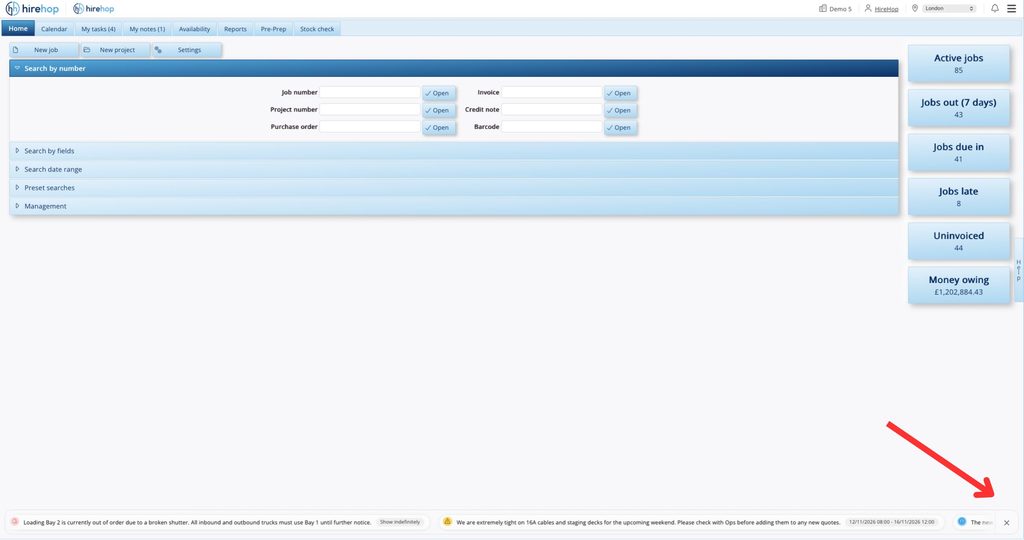
Banner announcements display a continuous, rolling ticker along the bottom of the screen for everyone logged into the selected depot — ideal for ongoing operational notices, warehouse updates or stock alerts.
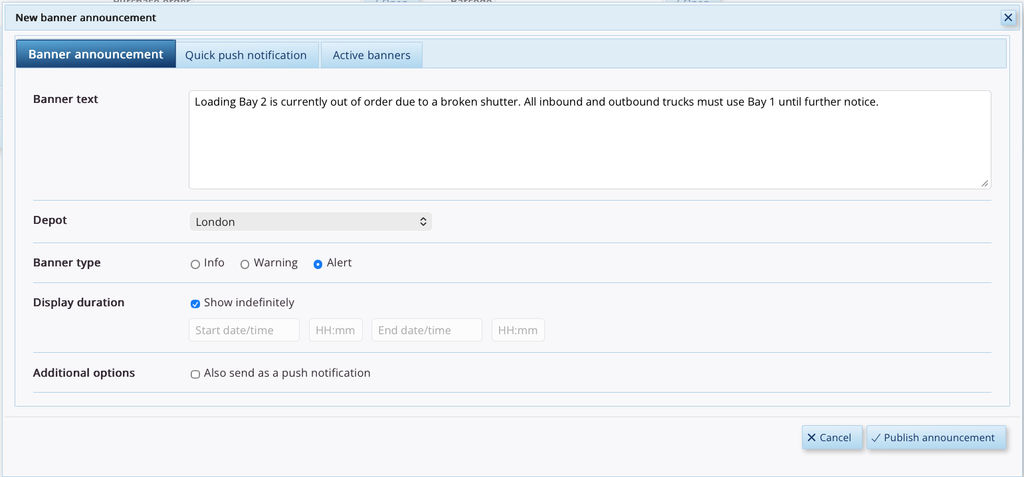
- Banner text: Enter the message you want your team to see (e.g., loading bay closures, stock restrictions, or updated warehouse rules).
- Depot: Select which specific depot should receive the announcement so multi-depot teams only see updates relevant to their location.
- Banner type: Choose between Info (blue), Warning (amber), or Alert (red) to match the urgency of your message.
- Display duration: Tick Show indefinitely to keep the banner live until you manually remove it, or set a custom Start date/time and End date/time for temporary notices.
- Also send as a push notification: Tick this option if you want the banner to trigger an immediate notification in your team’s notification panel as soon as it goes live.
Click Publish announcement to push your banner live.
Once published, active banners scroll neatly along the bottom footer of HireHop so your team stays informed without interrupting their workflow. Users can also click the small X on the bottom right to collapse or minimise the ticker bar whenever needed.
2. Managing Your Active Banners
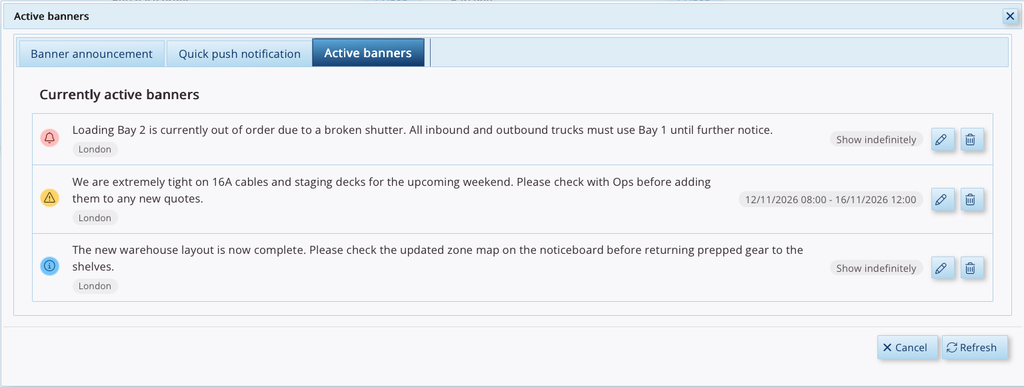
Need to update a notice, adjust its end time, or take it down once an issue is resolved? Open the Active banners tab to view all currently live and scheduled banners for your depot.
- See each banner’s urgency badge, target depot, and active schedule (Show indefinitely or specific date/time range) at a glance.
- Use the pencil icon on the right to edit the banner text or schedule, or click the bin icon to delete it immediately.
3. Sending Quick Push Notifications
When you need immediate attention without adding a permanent footer banner (such as tracking down a missing flight case before a 2 PM dispatch), switch to the Quick push notification tab.
- Enter your Notification message, choose the target Depot, and set your preferred Display duration (indefinite or scheduled start/end dates and times).
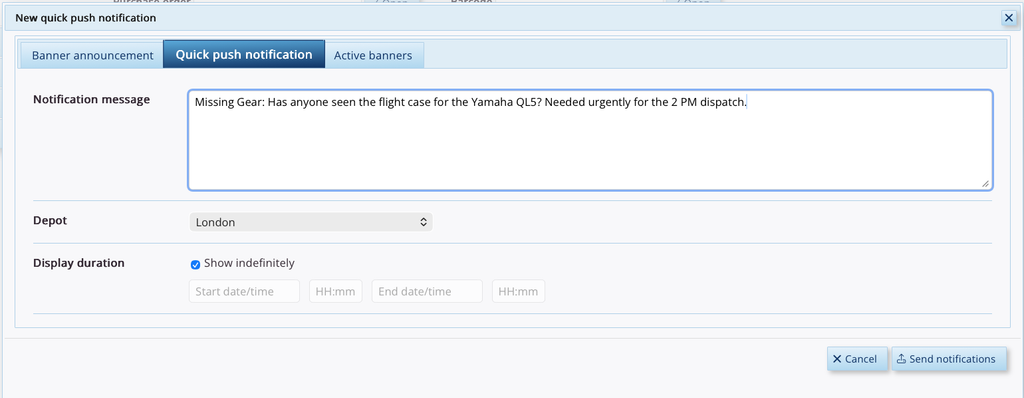
- Click Send notifications to deliver the message straight to every user’s Notifications panel in that depot (accessible via the bell icon in the top-right bar).